
Starts and home port
Where every trip leaves from: your home port and any extra starts you add.
What it shows
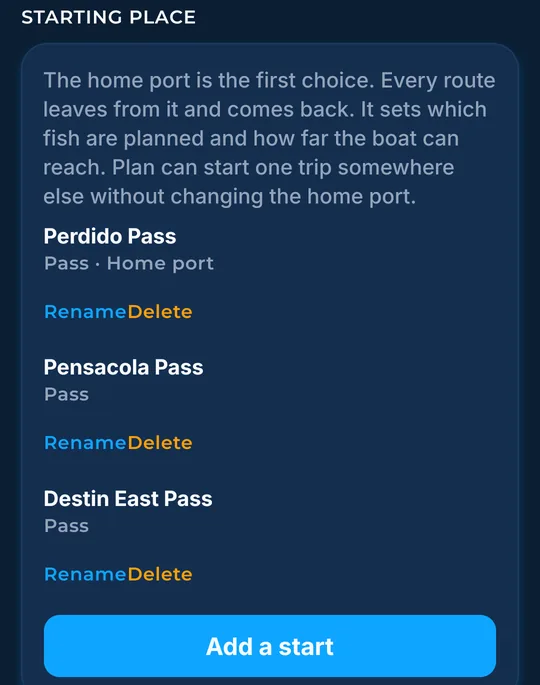
A start is where a trip leaves from and comes back to. The home port is the first choice. It sets which fish are planned and how far the boat can reach. Plan can start one trip somewhere else without changing the home port.
How to find it
- In More, the Starting place card lists your starts.
- Tap Add a start to add one.
How to use it
- Add a start by tapping Use my GPS location (then Allow location and use it), Drop a pin on the map, Type coordinates, or Pick a port. Tap Save start.
- The switch chooses whether the new start becomes the default.
- Tap a start to make it the home port. Tap Rename, edit the name, then Save name (or Cancel). Tap Delete to remove an extra start.
- To change your home port, search a port, then tap its name. The zone follows that port.
In the app tour
Tour step 48 of 67 · Boat & export · Add a start
Tap Use my GPS location, then Allow location and use it. Or tap Drop a pin on the map, Type coordinates, or Pick a port. Tap Save start to store it. The switch chooses whether this becomes the default start.
Tour step 50 of 67 · More (settings) · Starts in More
Tap a start to make it the home port. Tap Rename, edit the name, then tap Save name. Tap Cancel to leave the name. Tap Delete to remove an extra start. Tap Add a start for the GPS, pin, typed, or port choices.
Tour step 55 of 67 · More (settings) · Home port
Search a port, then tap the name to make it home. The zone follows that port.
See this step in the full tutorial →
Related
Every layer is included
One subscription opens every layer and feature. Founders get the first year for $80. See ordering and prices or give a year as a gift.
See The Bite is coming to the App Store and Google Play. The store links are not live yet.